What LMS migrations lose, and how to keep it
On this page
- First: do you need to move at all?
- 1. Learner progress and quiz results
- 2. Certificates already issued
- 3. Orders, enrolments and subscriptions
- 4. Old URLs and search rankings
- 5. Custom code hidden in the theme
- 6. The small things nobody lists
- Moving host is a migration too
- How long the site is down
- The checklist
Moving a course site sounds like copying courses. That part is easy: lessons, quizzes and course text come across with the export tools. What gets lost is everything around them, and it is the students who find it first.
This is the checklist I work from, whether the move is to a new LMS plugin, a new theme or a new host.
First: do you need to move at all?
A migration is the right answer when the platform itself is the problem. It is often not. When one missing feature is the reason, a small plugin beside the LMS you already run is usually cheaper and safer than moving every student.
Two documented builds show the pattern. French Immersion College stayed on LearnDash and added a custom plugin, French Path, for batches, seat limits and staff dashboards. CertifyPro Training kept native LearnDash groups and changed only the buying side, with a seat-based subscription product type. In both cases the missing feature was built beside the LMS rather than by replacing it.
If you do need to move, here is what gets lost and how to keep it.
1. Learner progress and quiz results
Every LMS stores completions and quiz attempts in its own format. Some routes have a vendor tool: the Tutor LMS Migration Tool moves LearnDash progress, quiz attempts and orders. Other routes need progress mapped by hand from the old data model to the new one, and an export that moves the course but not the progress resets every student to zero. Either way, run it on a staging copy first (the Tutor tool removes the migrated LearnDash courses) and check real student accounts before the switch.
2. Certificates already issued
Certificate templates are rebuilt on the new side, but students also need the certificates they already earned. Decide up front whether old certificates are reissued on the new system or kept as files, and test one for each course.
3. Orders, enrolments and subscriptions
When courses are sold through WooCommerce, every product has to point at the new course, and subscriptions must keep their renewal dates. When the LMS takes payment itself (LearnDash’s own Stripe or PayPal options, or Tutor LMS’s native checkout), old orders have to land in the new system’s order records. Either way, a wrong mapping means a paying student loses access. Compare active subscriptions and enrolments before and after, and check a sample account by account.
The Paving Vault redesign was a store, not a course site, but the rule is the same: the catalogue and customer accounts were kept as they were, while the design and the buying flow around them were rebuilt, and the site went live with the original catalogue and accounts intact.
4. Old URLs and search rankings
Course and lesson URLs change with the plugin. Without a 301 redirect for each old URL, years of shared links and search rankings end on a 404. Build the redirect map from the old sitemap before the move, and test it after.
When The Orange Room moved from a temporary domain to its own, the www and http versions were redirected and the agency QA checklist was run on the live domain.
5. Custom code hidden in the theme
On older course sites, business logic often lives in the theme. Switch the theme and that logic disappears with it.
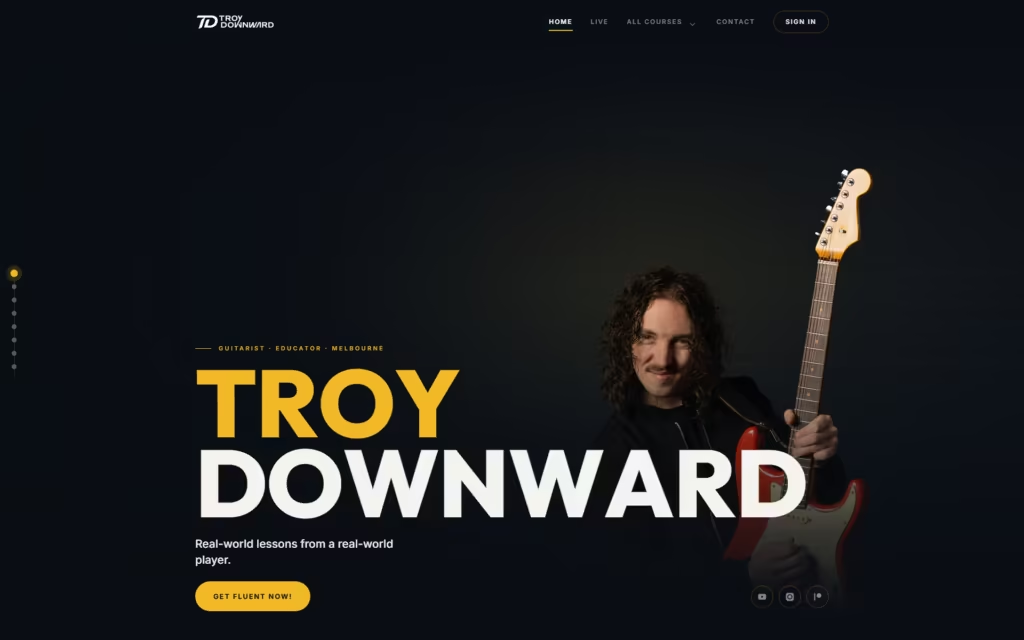
Troy Downward’s course site had thousands of lines of custom PHP inside the parent theme. As part of the redesign, that code moved into its own plugin, Troy Core, and the live database was left untouched, so students, courses and orders came through as they were.
6. The small things nobody lists
Payment webhooks, emails, scheduled jobs and caching break quietly. On Troy Downward’s site two of the fixes were exactly this kind: Stripe webhooks refused because of a signing secret mismatch, and a cached login page that gave students sign-in errors. Neither was caused by a move, but both are the kind of fault that only shows up when someone tries a real payment or a real sign-in. So after any move, run a real purchase, a real sign-in and a real email.
Moving host is a migration too
A new server changes cron, email delivery, caching and file permissions even when nothing else changes. When Beyond the Cycle (a charity site, not a course site) was migrated to Hostinger, it went through two QA rounds before handover. On Skin & Wellness Sphere, the move from local to live followed a checklist so the work an SEO specialist was already doing on the live site was never overwritten.
How long the site is down
If the whole move has already run on staging and the counts match, the live switch is a short, announced window rather than a weekend. The old site stays reachable until the new one is checked. Most of the time goes into the rehearsal, not the switch.
The checklist
Before the move
- Count everything: courses, lessons, students, enrolments, completions, certificates, orders, active subscriptions and URLs.
- Make a staging copy of the live site.
- List the custom code and where it lives.
During the move
- Run the whole move on staging first.
- Compare every count with the inventory.
- Log in as real students and check progress and certificates.
After the move
- Compare the counts again on the live site.
- Test a purchase, a renewal, a sign-in and the emails.
- Watch Search Console for 404s in the first weeks.
Planning a move? The LMS Migration page explains how I quote it, and Tutor LMS vs LearnDash covers which side to move to.
The service behind this article
Need this built?
LMS Migrationfrom $499 Book a 30-min call All servicesRelated articles
Hiring a LearnDash developer: what to ask before you pay
Hiring a LearnDash developer? The questions that separate a safe build from an expensive one, what a good answer sounds like, and the red flags to watch.

Kajabi vs WordPress: what you pay, and what you own
Kajabi or your own WordPress site? What each costs to run in November 2026, what you can take with you when you leave, and when a move pays off.

Rebuilding my WordPress site: before and after, in numbers
The old home page loaded 19 stylesheets and 18 scripts. The rebuild loads 2 and 1. What changed, how it was measured, and five checks for your own site.